🗄️ Database Backups
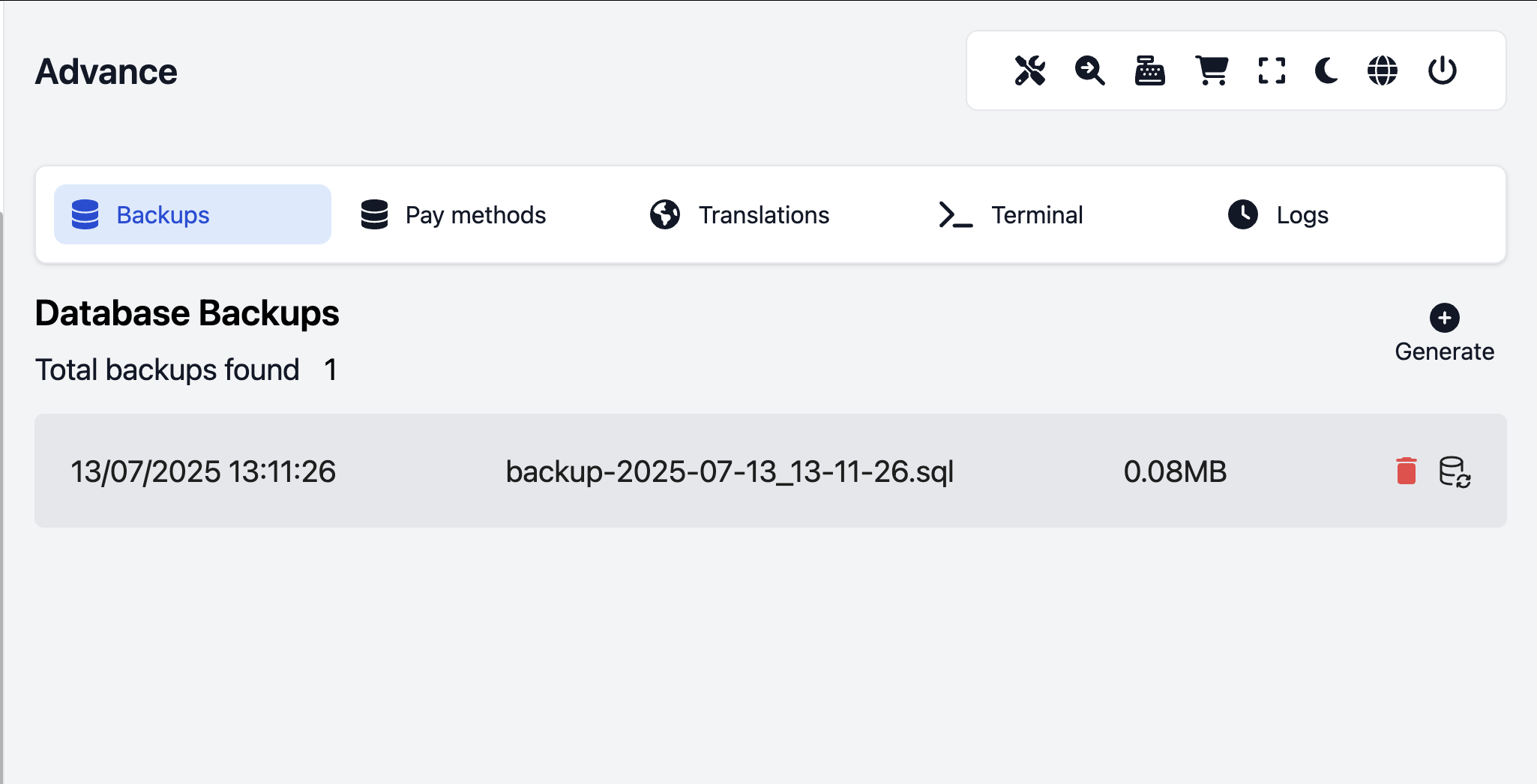
The Database Backup & Restore feature ensures your business-critical data is protected and recoverable. Whether you’re preparing for system updates, migrations, or just safeguarding against accidental data loss, this tool gives you peace of mind with just a few clicks.
🧩 Are you looking for a customized version?
We can provide a customized version tailored to your needs.
Please don’t hesitate to contact us at:
🔐 Why Use Database Backups?
Backing up your database regularly is crucial for:
✅ Data protection — Secure your records from accidental deletion or corruption.
🔄 Easy recovery — Restore your system to a previous state in case of errors or unexpected issues.
🧠 Peace of mind — Know that your information is safe, even during system upgrades or server changes.
💼 Business continuity — Avoid costly downtime or operational disruptions.
⚙️ How to Use It
📤 Creating a Backup
Navigate to: Settings > Database Backups
Click on the “Create Backup” button.
The system will generate a .sql backup file of your current database.
Once done, you’ll see the file listed with a timestamp and download button.
💡 Tip: Download your backups regularly and store them securely off-site or in cloud storage.
📥 Restoring from a Backup
Go to: Settings > Database Backups
Click “Restore” next to the backup file you want to restore.
Confirm the restoration — ⚠️ this will replace your current database.
The system will process the file and restore your data.
⚠️ Important: Restoring a backup will overwrite current data. Always double-check before proceeding!
🧹 Managing Backups
Older backups can be deleted to save storage space.
You can download any backup file for off-site storage.
Keep at least the last 3–5 backups as a best practice.
🔄 Backup Recommendations
To get the most out of this feature:
Task
Recommendation
Backup Frequency
Weekly (or daily for active businesses)
Off-site Backup
Store a copy on cloud or external storage
Backup Before Updates
Always back up before any system update
File Security
Treat backups like sensitive data — encrypt if possible
🧰 Troubleshooting
Restore failed? Make sure the backup file isn’t corrupted and your storage allows writing.
Can’t create a backup? Check file permissions or available storage space.
Missing data post-restore? Confirm you’re restoring the correct backup version.
🚀 Best Practices
Automate weekly reminders for manual backups.
Maintain a naming convention (e.g., backup-2025-07-17.sql).
Regularly test backup and restore processes to avoid surprises when you need them most.